
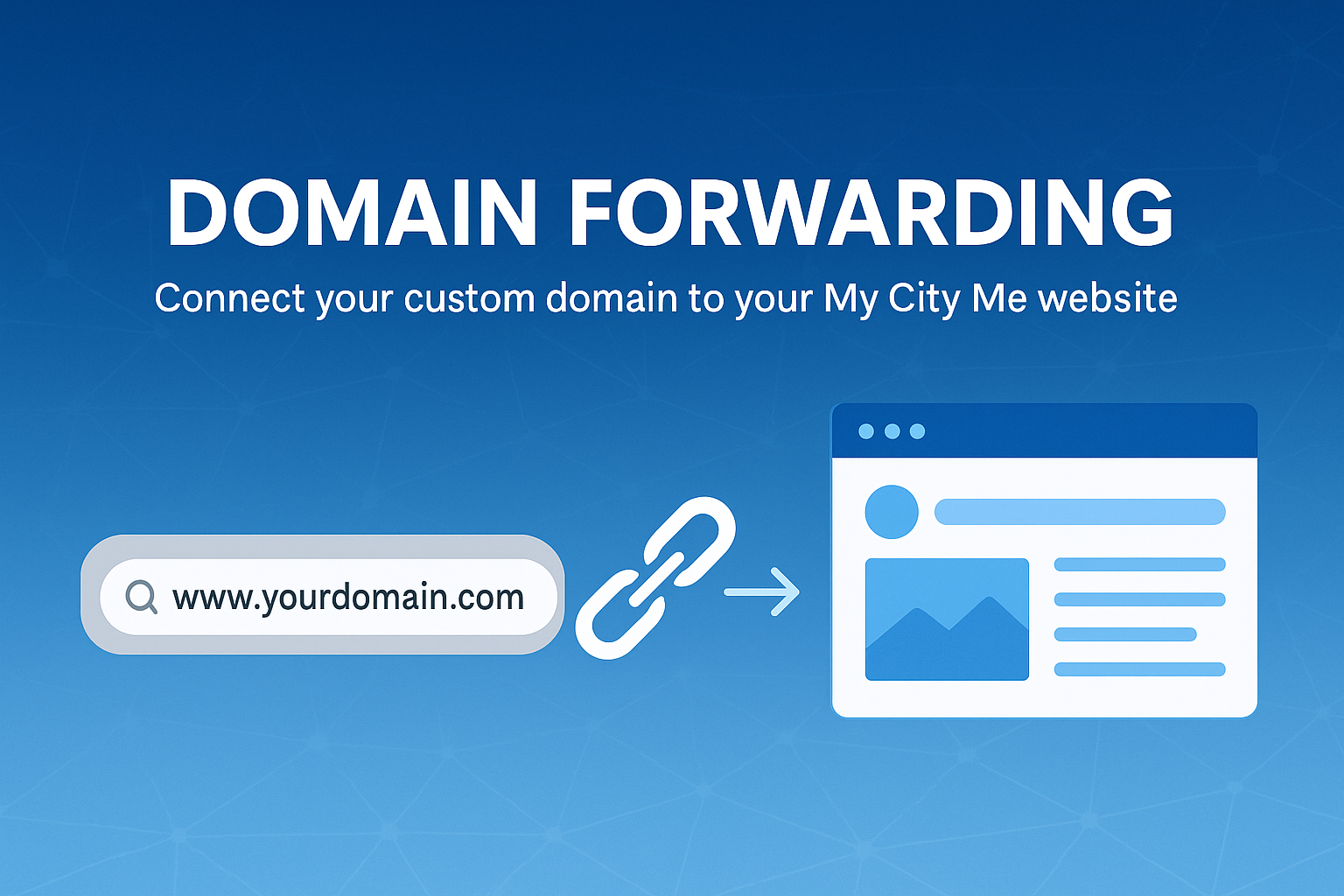
My City Me does not sell or manage domain names directly. Instead, you register your domain with a domain provider (registrar) and then forward it to your My City Me website or Promo Page.
Domain forwarding lets you point a custom web address like www.YourBusiness.com to your My City Me website or Promo Page. When customers type your domain into their browser, they'll automatically be forwarded to your My City Me address - simple, professional, and easy to remember.
Domain forwarding (also called URL forwarding or domain redirecting) is a feature that sends visitors from one web address to another. For example:
www.YourBusiness.com →
https://www.mycityme.net/yourbusinesspage.htm
This allows you to keep using a short, branded domain on your marketing materials while My City Me hosts and maintains the actual website or Promo Page.
When you set up domain forwarding, your registrar may ask whether you want forwarding with masking (sometimes called cloaked or framed forwarding) or forwarding without masking. Here's what each option does.
With standard forwarding without masking, visitors are redirected to your My City Me URL and the browser's address bar updates to show the new address.
Example:
www.YourBusiness.com.https://www.mycityme.net/Benefits of forwarding without masking:
With forwarding with masking, visitors are still sent to your My City Me page, but the original domain stays in the browser's address bar. The My City Me URL is hidden from the user.
Example:
www.YourBusiness.com.https://www.mycityme.netwww.YourBusiness.com.Things to know about masking:
For most business websites and Promo Pages, My City Me recommends forwarding without masking for the best compatibility and search visibility. Masking is usually only appropriate for simple, single-page informational content.
The exact steps depend on where your domain is registered (for example, GoDaddy, Namecheap, or another provider), but the process is usually similar:
https://mycityme.net/Changes may take anywhere from a few minutes up to 24 hours to update across the internet. This delay is normal and is called DNS propagation.
Before you set up forwarding, have the following ready:
If you're unsure how to configure forwarding with your registrar, My City Me is here to help. Provide your domain name and who it's registered with, and we can guide you through the steps, including whether to use forwarding with or without masking.
You can reach us through our Customer Support form or by visiting the Customer Care section under Online Support.
Together, we'll make sure your domain forwards correctly so customers can always find your My City Me website or Promo Page.